To turn PowerPoint into a study quiz with MelonNote, export the presentation as a PDF, import that PDF, and generate questions from the resulting note. Check the questions against the slides, including diagram labels and small-print conditions. A slide deck often leaves out explanations that were only spoken in class.
This is a student self-study workflow. It does not turn a presentation into a live audience poll or predict your exam questions. If you want individual recall cards instead, use the separate PowerPoint-to-flashcards guide.
Export a PDF that preserves the useful information
Use PowerPoint's PDF export or save options for your platform. Microsoft's PDF instructions cover the available routes. Open the exported file before importing it into MelonNote.
Check three things at normal reading size:
- Text: Are symbols, subscripts and footnotes legible?
- Diagrams: Does the PDF contain the final meaningful state, including labels that appeared during an animation?
- Explanation: Did important speaker notes or your own annotations make it into the material you will study?
A static PDF will not replay an animation. If the animation explained a sequence, preserve its steps as separate readable material. Do not assume the export includes speaker notes; inspect it. This workflow does not claim direct .pptx import into MelonNote.
Worked example: three slides about binary search
Here is a small original slide outline for a self-study exercise. It is illustrative course material, not an app-generated deck. The procedure searches a sorted list of distinct numbers for a target.
Slide 1 — Rule: Compare the target with the middle value of the current search range. If they match, stop. If the target is smaller, continue in the lower half; if larger, continue in the upper half. Stop with “absent” if no candidates remain.
Slide 2 — Diagram: Search for 12 in 2, 5, 8, 12, 16, 23, 38. The first middle value is 12, so the search stops immediately. Search for 23 in the same list: compare with 12, then continue among 16, 23, 38 and find 23.
Slide 3 — Qualification: The list must be sorted according to the comparison being used. For an even number of remaining values, this exercise chooses the lower of the two middle positions. A missing target is possible.
The first slide describes a procedure, the second makes it concrete, and the third limits how you may apply it. A useful quiz needs all three.
Map each slide to a different question
Use this coverage table before accepting generated questions:
| Source | Practice question | What a checked answer must include |
|---|---|---|
| Slide 1 | After comparing with the middle, where do you continue if the target is smaller? | The lower half of the current range, excluding the checked middle |
| Slide 2 | Which values are compared when searching for 23 in the example? | 12, then 23 |
| Slide 3 | Why can you not use the same elimination rule on an unsorted list? | Discarded positions could still contain the target |
| Slides 1 and 3 | What happens when the target is absent? | The remaining range eventually becomes empty |
Keep at least one short-answer question. Recognizing “sorted” in a multiple-choice list is different from explaining why sorting makes the discarded half safe to ignore.
Write one multiple-choice item that can be defended
Question: Using the stated procedure, you search for 17 in 2, 5, 8, 12, 16, 23, 38. After comparing with 12, which range remains?
2, 5, 816, 23, 3812, 16, 23, 38
Answer: 2. Since 17 is greater than 12, only the positions above the checked middle remain. The first choice reverses the comparison; the third unnecessarily retains the value already ruled out. The question asks about the next range, not whether 17 exists in it.
That distinction makes the answer rationale useful. “B is correct because it is the correct range” would add nothing. A good rationale explains both the selection and the error represented by each alternative.
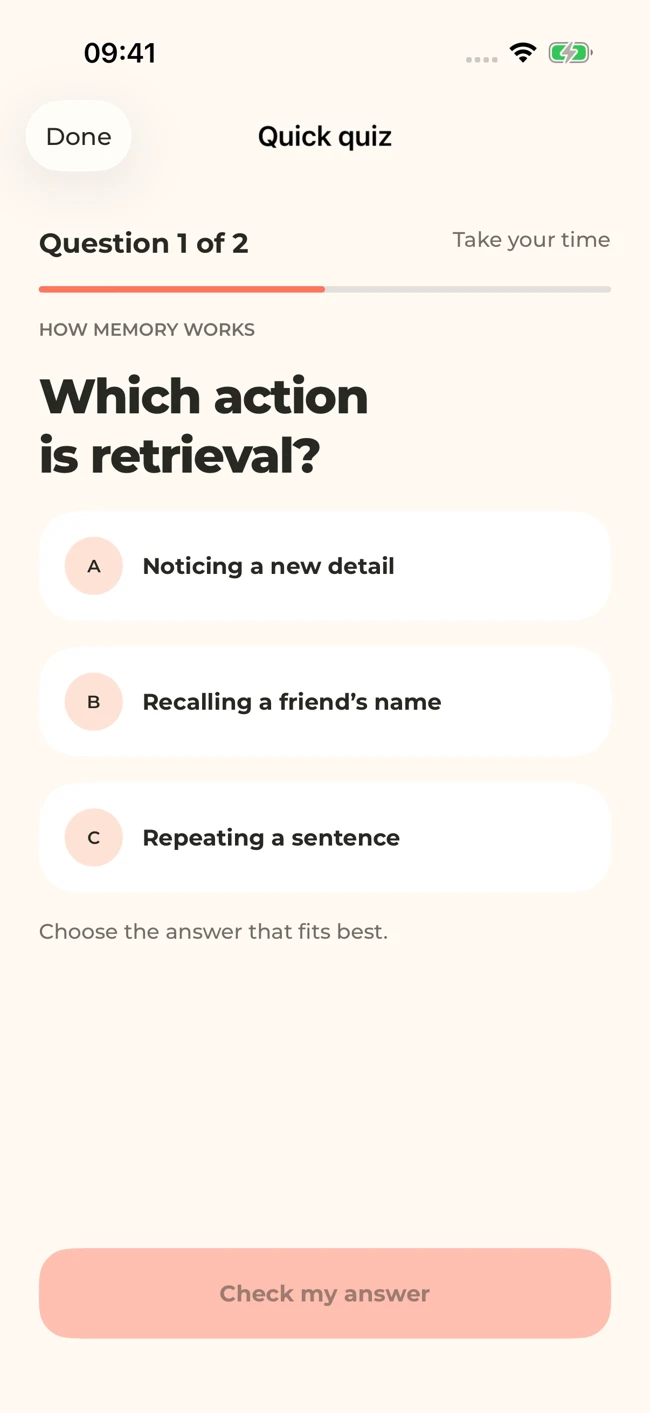
A MelonNote quiz screen with sample memory-study content. Check generated answers against your own source; the worked questions in this article are editorial examples.
iPhone and Android · Features and screen layouts may differ.Catch two common distractor mistakes
Mistake one: two equivalent correct answers. “The values above 12” and “16, 23, 38” describe the same range here. Putting both into a single-answer question creates an avoidable ambiguity.
Mistake two: a hidden convention. Ask for the middle of 16, 23 without supplying a rule and different implementations could choose differently. Our third slide explicitly chooses the lower position. Preserve that instruction in any question that depends on it.
A third problem is an answer that requires material the deck never covered. For example, a detailed question about implementation performance would need an additional source. Mark it as outside this deck's scope instead of accepting a plausible explanation. Our PDF-to-quiz walkthrough shows another way to check whether a source supports exactly one answer.
Run the slide-to-quiz workflow in MelonNote
Import your permitted PDF and inspect the resulting note. Open the quiz tool and generate a practice set. Keep the PDF beside you for the first pass, checking each question before treating the result as revision material.
If a question is ambiguous, record a corrected version in your own worksheet or ask the note's tutor a narrower question. Do not repeatedly memorize a faulty item while waiting to fix it. The AI quiz guide explains the source-checking routine.
Make your next slide deck a practice session.
Export one lecture as a readable PDF, import it into MelonNote, and generate a quiz. Check its questions against the slides before testing yourself.
Free download. In-app purchases available.
Test transfer with a fresh slide example
Now search for 14 in 3, 7, 11, 14, 18, 22, 29, using the same rule. The first comparison finds 14. Then search for 15: compare with 14, then 22, then 18; the candidate range becomes empty.
Write the remaining range after each comparison. If you selected the right multiple-choice answer but cannot explain these steps, use a worked procedure rather than more recognition questions. A quiz score alone cannot tell you which parts of the method you can reproduce.
For your own lecture, change one value, diagram condition or assumption and solve the new case manually. You can record the source slide, draft item and correction in the slide-question checklist.
Common questions about PPT to quiz conversion
Can MelonNote make a quiz directly from a PowerPoint file?
The supported workflow described here uses a PDF exported from PowerPoint. Inspect the current import options before assuming a native presentation-file route is available.
What if a slide contains only a heading and a picture?
Add the permitted lecture explanation as a separate checked source, or write down what is missing before generating questions. A tool cannot reliably reconstruct an explanation it never received. See how to combine recordings and slides.
Should I create a question for every slide?
No. Title slides, repeated illustrations and reading lists do not necessarily need questions. Cover the learning objectives and the conditions that change an answer. The objective-to-question example provides a useful alternative to counting slides.
Check generated material against your original notes. App features, access limits, and screen labels can vary by platform and version.
Make your next slide deck a practice session.
Export one lecture as a readable PDF, import it into MelonNote, and generate a quiz. Check its questions against the slides before testing yourself.
Free download. In-app purchases available.