
To study a lecture recording and slides together in MelonNote, create a note from a permitted recording, import the slides as a PDF, check both notes, and select them for a combined study set. Use the set to ask questions across the material or generate practice. This does not require automatic audio-to-slide alignment, which is not claimed here.
The benefit of combining sources is context. A slide may name an idea while the lecturer supplies the example or exception. Keep those roles visible so a combined summary does not make a brief heading look like the whole explanation.
What should you prepare before creating the study set?
Choose one lecture or one learning objective. Give the recording note and slide note related but distinct names, such as “Week 3 — choices — lecture” and “Week 3 — choices — slides.” You should be able to tell which source you are opening without rereading its contents.
Use recordings and course materials you are allowed to process. If recording is not permitted, work from your own notes and the institution's approved materials instead. A study app's technical ability to accept content does not decide the rules for your class.
If the slides are in PowerPoint, export a readable PDF first. Open the result to check page order, labels and whether speaker notes were included. The PowerPoint-to-flashcards guide explains the export checks; the same PDF preparation is useful for a broader study set.
How do you create the recording note?
Use MelonNote's recording workflow, with permission, and review the resulting transcript or note. Check names, technical terms, numbers and qualifications against the audio. If a particular sentence is important to the lecture's argument, inspect it rather than assuming an accurate-looking paragraph preserves every condition.
Keep the original recording available. MelonNote's iOS release history documents recording playback and audio sharing; check your platform version's controls before relying on them. If you start with a recording made elsewhere, verify that your version supports the intended import route. This guide's main workflow uses recording in MelonNote.
Use the lecture-recording guide for capture details and the transcript-checking guide for common errors. Correct a source mistake before using the note to generate several different study outputs.
How do you add and check the slide note?
Choose document import from the note-creation options available in your version and select the PDF. After processing, compare the extracted material with a few representative slides. Include a definition, a numerical example and a diagram or table if the deck contains them.
Slides often rely on layout. A column heading may apply to several bullets, and a footnote may limit the claim above it. Check that the extracted note retains those relationships. If the note loses a diagram's meaning, keep the original slide beside your study material and add a checked explanation where possible.
Do not assume that an imported slide heading includes the lecturer's spoken detail. Preserve each source first; combine them only after you understand what each one contributes. That makes discrepancies easier to spot.
A worked example: one definition and one spoken example
Imagine an introductory economics lecture about opportunity cost. Your slide introduces the value of the next-best alternative forgone. The lecturer then describes choosing between two mutually exclusive uses of an afternoon. The concept is discussed in OpenStax's chapter on choices and budget constraints.
For this original editorial scenario, assume the two options are a museum visit and a study session. The student chooses the museum; the study session is the next-best alternative in the example. The source does not assign a monetary value to either option, so your study material should not invent one.
| Source | What it contributes | What to check |
|---|---|---|
| Slide definition | The relationship between choice and the forgone alternative | That “next-best” is not lost |
| Spoken example | The available options and the choice made | Which alternative the example actually treats as next best |
| Your question | Why the concept is not simply the admission price | Whether the explanation stays within the stated assumptions |
The two sources now support a more useful task than memorizing the heading alone: explain which option is forgone and why the cost concept differs from a price printed on a ticket. This example is not an app-generated result or a claim about a real student's progress.
How do you combine the notes in MelonNote?
Select the relevant notes and use the combined-study or study-set action available in your version. Include the lecture and slide notes for the same objective. Leave out unrelated chapters until you have a reason to compare them. Exact labels may vary between platforms and releases.
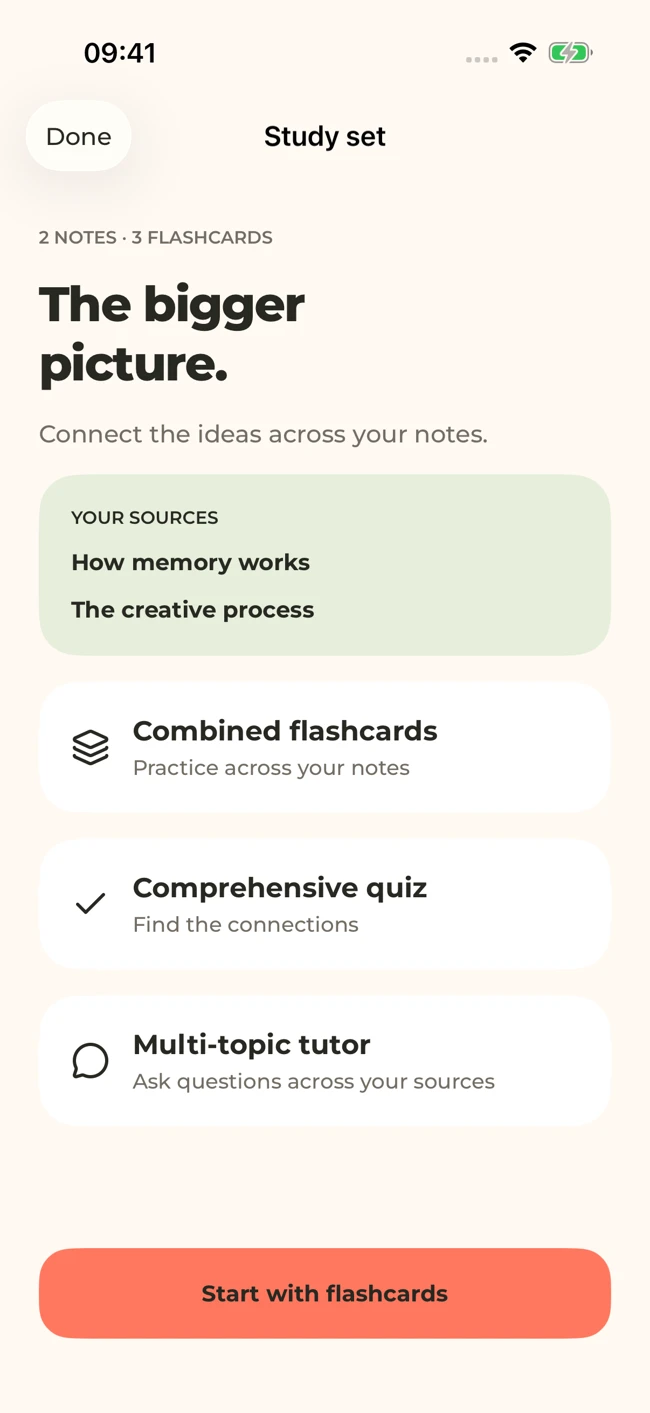
MelonNote can bring related notes into one study set. This iOS screen uses sample sources; layouts can vary by platform and version.
iPhone and Android · Features and screen layouts may differ.Start with one focused tutor question, such as: “Using the definition and example in these notes, explain what the student gives up. Separate the stated assumptions from information the sources do not provide.” Then check the answer against both original sources.
Use the combined-notes guide for the general selection workflow. Combining notes into a study set is not a promise to merge every original file, synchronize timestamps or create a searchable slide-by-slide recording timeline.
Connect the explanation with the slide.
Create checked notes from a permitted recording and PDF slides, then select related notes for a focused MelonNote study set.
Free download. In-app purchases available.
What questions should you generate from the combined set?
Choose questions that require the sources to work together. For the example above, a definition card is useful, but it should be followed by an application question. Ask what changes if the student's next-best alternative changes, while keeping the assumptions explicit.
Try three kinds of practice:
- Definition: Explain the concept without copying the slide wording.
- Application: Identify the relevant detail in the spoken example.
- Boundary: State what cannot be concluded from the available information.
Review generated flashcards or quizzes before relying on them. If a question treats the ticket price as the complete opportunity cost, compare it with the definition and correct or avoid that item. If an answer assigns a value that the sources never supplied, mark it as unsupported rather than accepting the apparent precision.
The AI quiz guide explains how to check answer choices. A combined set can still omit an important idea, so compare it with your lecture objectives as well as checking the questions it did generate.
What if the lecturer and slides disagree?
Keep the disagreement visible. A slide could be outdated, the speaker could correct an earlier statement, or the transcript could contain an error. A smooth combined summary should not decide which explanation is authoritative without evidence.
Write a short discrepancy note: the slide or page reference, the recording location if available, the two statements and what you need to confirm. Recheck the audio and the course's latest materials. If the conflict remains important, ask the instructor or consult the authoritative course source.
Avoid generating a factual card from the disputed point until you resolve it. You can still study the surrounding material. The lecture gap log provides a simple place to keep unresolved questions without letting them disappear inside a long summary.
How much material belongs in one set?
Include enough material to answer the learning question, then stop. A set called “Explain opportunity cost with the lecture example” has a clearer purpose than one containing every economics file from the semester. Add another source when it contributes a relevant definition, example or contrast.
After practicing, close the source and explain the connection yourself. If the explanation breaks down, identify the missing part before adding more notes. A larger collection can hide a small misunderstanding rather than resolve it.
For a research-heavy course where checking citations across many documents is the main task, compare the workflows in MelonNote vs NotebookLM. For live virtual-meeting capture, see MelonNote vs Otter. The right starting tool depends on what you need to capture and verify.
Common questions
Will MelonNote match each recording timestamp to a slide?
This guide does not establish automatic timestamp-to-slide matching. It describes creating checked notes from separate sources and studying them together. Keep your own source references when exact locations matter.
Can I combine more than two notes?
MelonNote's listings describe selecting multiple notes for study. Choose related material and inspect the current access limits in your version. More sources should serve a defined question rather than simply make the collection larger.
Can I use this without recording the lecturer?
Yes. You can combine your own checked lecture notes with imported PDF slides and other material you are allowed to use. The same rules apply: preserve context, resolve disagreements and check generated questions against the sources.
Check generated material against your original notes. App features, access limits, and screen labels can vary by platform and version.
Connect the explanation with the slide.
Create checked notes from a permitted recording and PDF slides, then select related notes for a focused MelonNote study set.
Free download. In-app purchases available.